Top 4 Apps for Collaborative Group Projects
Streamline group work with the top 4 apps for collaborative projects. Enhance communication and productivity among team members.
Streamline group work with the top 4 apps for collaborative projects. Enhance communication and productivity among team members.
Top 4 Apps for Collaborative Group Projects
Group projects are a cornerstone of academic life, especially in college and university. They teach invaluable skills like teamwork, communication, and problem-solving. However, they can also be a source of frustration if not managed effectively. Miscommunication, unequal workload distribution, and missed deadlines are common pitfalls. Thankfully, technology offers a powerful solution: collaborative apps. These tools are designed to streamline communication, facilitate document sharing, track progress, and ensure everyone is on the same page, no literal page required!
In this comprehensive guide, we're diving deep into the top four apps that can transform your group project experience from chaotic to coordinated. We'll explore their features, ideal use cases, compare their strengths and weaknesses, and even give you a peek into their pricing structures. Whether you're working on a research paper, a presentation, a coding assignment, or a business plan, there's an app here that can significantly boost your team's productivity and success.
Google Workspace for Seamless Document Collaboration and Communication
Google Workspace, formerly known as G Suite, is arguably the most ubiquitous and user-friendly suite of collaborative tools available. It's a powerhouse for group projects, offering a seamless integration of document creation, communication, and organization. Most students are already familiar with at least some of its components, making the learning curve minimal.
Key Features and Benefits for Student Teams
- Google Docs, Sheets, Slides: These are the core of Google Workspace for collaborative document creation. Multiple users can edit the same document, spreadsheet, or presentation in real-time. You see exactly what others are typing, and changes are saved automatically. This eliminates the dreaded 'version control' nightmare.
- Google Drive: Your central hub for file storage and sharing. You can create shared folders for your project, ensuring all team members have access to the latest versions of documents, research materials, and media files. Permissions can be easily managed, allowing you to control who can view, comment, or edit.
- Google Meet: For virtual meetings and discussions. If your team members are in different locations or prefer online collaboration, Google Meet provides reliable video conferencing with screen sharing capabilities. This is crucial for brainstorming sessions, progress updates, and final reviews.
- Google Calendar: Keep track of deadlines, meeting schedules, and individual task assignments. You can create a shared project calendar, send invitations, and set reminders, ensuring everyone is aware of important dates.
- Google Chat: For quick, informal communication. This integrated chat feature allows for instant messaging within your team, perfect for asking quick questions, sharing links, or coordinating small tasks without cluttering email inboxes.
- Version History: A lifesaver! Google Workspace automatically saves all changes and allows you to revert to previous versions of a document. This means no more panicking if someone accidentally deletes a crucial section.
Ideal Use Cases and Scenarios for Google Workspace
Google Workspace shines in projects that are heavily reliant on document creation and real-time editing. Think about:
- Research Papers: Multiple team members can work on different sections of a paper simultaneously, add citations, and review each other's work.
- Presentations: Collaboratively design slides, add content, and refine visuals for a cohesive presentation.
- Data Analysis: Share and analyze data in Google Sheets, with different team members working on specific data sets or calculations.
- Brainstorming Sessions: Use Google Docs as a shared whiteboard for brainstorming ideas, outlining project structures, or creating mind maps.
Pricing and Accessibility for Students
For most students, Google Workspace is essentially free. If your university uses Google for Education, you'll likely have access to all premium features through your student account. Even without a university account, the basic personal Google account offers ample storage and functionality for most student projects. There are paid tiers for businesses, but these are generally not relevant for individual student use.
Trello for Visual Task Management and Workflow Organization
If your group project involves a lot of distinct tasks, deadlines, and a need for clear progress tracking, Trello is an excellent choice. It's a visual project management tool that uses boards, lists, and cards to organize tasks in a highly intuitive way. It's based on the Kanban system, making it easy to see what needs to be done, what's in progress, and what's completed.
Key Features and Benefits for Student Teams
- Boards, Lists, Cards: This is Trello's core structure. A 'board' represents your project. Within the board, you create 'lists' (e.g., 'To Do', 'In Progress', 'Done'). Each 'card' represents a specific task.
- Drag-and-Drop Interface: Moving tasks from one stage to another is as simple as dragging a card. This visual feedback is incredibly satisfying and helps maintain clarity.
- Task Assignment and Due Dates: Assign cards to specific team members and set due dates. Trello will send reminders, ensuring accountability.
- Checklists: Break down larger tasks into smaller, manageable steps within a card using checklists. This helps prevent overwhelm and ensures all sub-tasks are completed.
- Attachments and Comments: Attach relevant files (documents, images, links) directly to cards. Use the comment section for discussions related to that specific task, keeping conversations organized and contextual.
- Labels and Filters: Categorize tasks using color-coded labels (e.g., 'High Priority', 'Research', 'Design'). You can then filter cards to quickly find what you need.
- Power-Ups (Integrations): Trello integrates with many other apps like Google Drive, Slack, and Calendar, extending its functionality.
Ideal Use Cases and Scenarios for Trello
Trello excels in projects that require clear task delegation, progress visualization, and a structured workflow. Consider it for:
- Event Planning: Organize all tasks related to planning a student event, from venue booking to promotion.
- Software Development Projects: Track features, bugs, and development stages.
- Marketing Campaigns: Manage content creation, social media scheduling, and outreach efforts.
- Any Project with Distinct Phases: If your project has clear 'to do,' 'doing,' and 'done' stages, Trello is perfect.
Pricing and Accessibility for Students
Trello offers a very generous free tier that is more than sufficient for most student group projects. It allows for unlimited boards, lists, and cards, and basic integrations. There are paid plans (Standard, Premium, Enterprise) that offer advanced features like unlimited Power-Ups, larger file attachments, and priority support, but these are typically not necessary for student use.
Slack for Real-time Communication and Channel Organization
While Google Chat is integrated into Google Workspace, Slack takes real-time team communication to another level. It's designed to reduce email clutter and foster quick, organized conversations. Think of it as a highly sophisticated instant messaging platform built for teams.
Key Features and Benefits for Student Teams
- Channels: The core of Slack. You can create dedicated channels for different aspects of your project (e.g., #general, #research, #design, #deadlines). This keeps conversations focused and prevents information overload.
- Direct Messages: For one-on-one or small group conversations.
- Threads: Keep conversations organized by replying in threads. This prevents long discussions from becoming a jumbled mess in the main channel.
- File Sharing: Easily share documents, images, and links directly within channels or direct messages.
- Search Functionality: A powerful search feature allows you to quickly find past conversations, shared files, or specific information.
- Integrations: Slack integrates with hundreds of other apps, including Google Drive, Trello, Zoom, and more. This allows you to bring information from other tools directly into your Slack workspace.
- Reminders: Set reminders for yourself or your team about upcoming deadlines or tasks.
- Voice and Video Calls: Conduct quick voice or video calls directly within Slack for immediate discussions.
Ideal Use Cases and Scenarios for Slack
Slack is invaluable for projects that require constant communication, quick decision-making, and a centralized hub for discussions. It's great for:
- Daily Stand-ups: Quick check-ins where team members share what they're working on and any blockers.
- Brainstorming Sessions: Rapid-fire idea generation and feedback.
- Q&A: A central place for team members to ask questions and get quick answers.
- Project Updates: Share progress reports, news, or changes in direction.
- Remote Teams: Essential for teams that aren't physically together, providing a virtual office environment.
Pricing and Accessibility for Students
Slack offers a free plan that is suitable for most student groups. It includes access to 90 days of message history, 10 integrations, and one-on-one voice and video calls. For larger or longer-term projects, the Pro plan (starting around $7.25 per user per month, billed annually) offers unlimited message history, more integrations, and group calls. However, the free tier is usually sufficient for a single academic project.
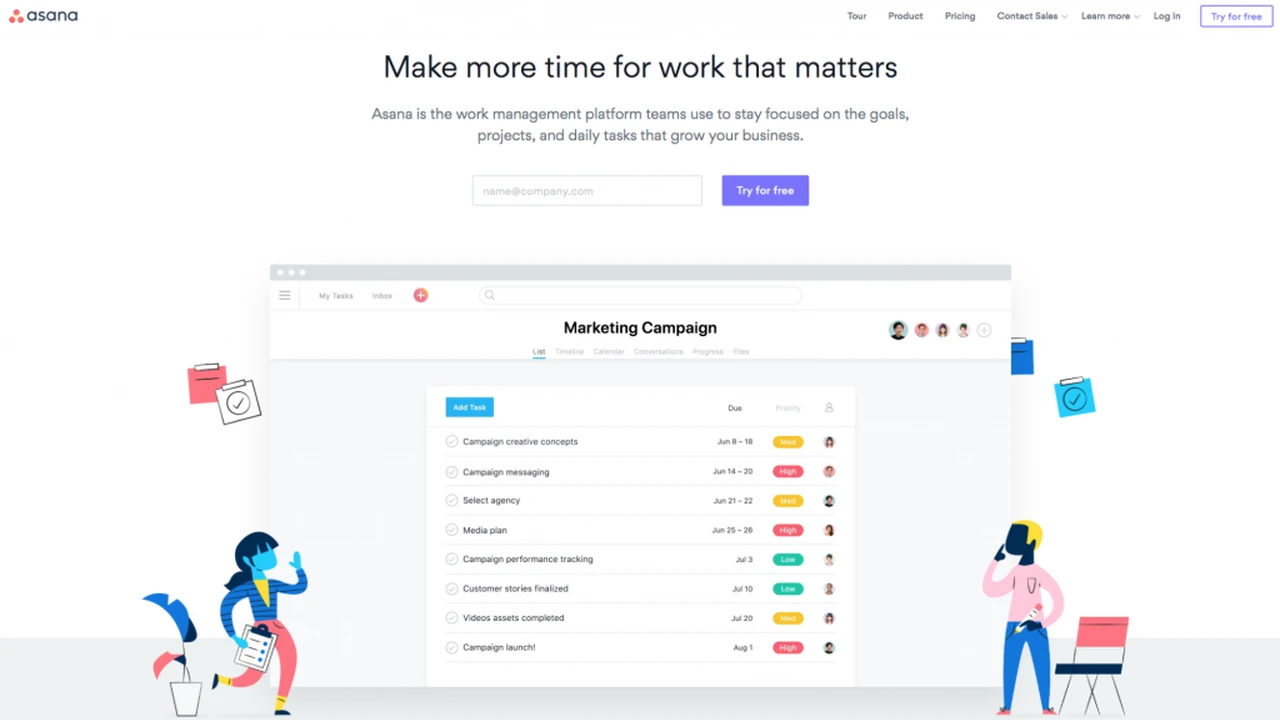
Asana for Comprehensive Project Planning and Tracking
If your group project is complex, involves multiple sub-projects, or requires detailed task management with dependencies, Asana is a robust solution. It offers more advanced features than Trello, making it suitable for larger or more intricate academic endeavors.
Key Features and Benefits for Student Teams
- Project Views: Asana offers multiple ways to view your project: List, Board (similar to Trello), Calendar, and Timeline (Gantt chart). This flexibility allows teams to choose the view that best suits their workflow.
- Tasks and Subtasks: Break down projects into main tasks and then further into subtasks, creating a clear hierarchy of work.
- Dependencies: Set dependencies between tasks, meaning one task cannot start until another is completed. This is crucial for managing complex workflows and preventing bottlenecks.
- Custom Fields: Add custom fields to tasks to track specific information relevant to your project (e.g., priority level, department, status).
- Portfolios: For very large projects or if you're managing multiple group projects, portfolios allow you to oversee the progress of several projects at once.
- Workload Management: See who is assigned to what and if anyone is overloaded, helping to distribute work fairly.
- Integrations: Asana integrates with a wide range of tools, including Google Drive, Slack, Microsoft Teams, and more.
- Comments and Collaboration: Discuss tasks directly within Asana, attach files, and provide feedback.
Ideal Use Cases and Scenarios for Asana
Asana is best suited for more structured and complex academic projects where detailed planning and tracking are essential. Consider it for:
- Capstone Projects: Manage the numerous phases, research, development, and presentation aspects of a capstone.
- Large-Scale Research Initiatives: Coordinate multiple research streams, data collection, and analysis.
- Course-Long Projects: For projects that span an entire semester and require continuous tracking and adjustments.
- Any Project with Interdependent Tasks: If the order of operations is critical, Asana's dependency features are invaluable.
Pricing and Accessibility for Students
Asana offers a free Basic plan that supports up to 15 team members and provides core task management features. This is often sufficient for many student groups. For more advanced features like Timeline view, custom fields, and unlimited dashboards, you'd need a paid plan (Premium starts around $10.99 per user per month, billed annually). However, for most academic projects, the free tier provides a robust set of tools.
Choosing the Right Tool for Your Team and Project
The 'best' app isn't a one-size-fits-all answer; it depends entirely on your specific project's needs, your team's familiarity with technology, and the complexity of your collaboration. Here's a quick guide to help you decide:
- For document-heavy projects with real-time co-editing: Google Workspace is your go-to. Its seamless integration and familiarity make it an easy win.
- For visual task management and simple workflows: Trello is fantastic. It's intuitive, easy to set up, and provides a clear overview of progress.
- For constant, organized real-time communication: Slack is unparalleled. It reduces email clutter and keeps discussions focused.
- For complex projects with detailed planning and dependencies: Asana offers the robust features needed to manage intricate workflows and track progress meticulously.
Many teams even combine these tools. For instance, you might use Google Docs for writing, Trello for task management, and Slack for daily communication. The key is to choose tools that enhance your team's efficiency, not complicate it. Before committing, try out the free versions with your team. See what feels most comfortable and effective for everyone involved. A little upfront planning in choosing your collaborative tools can save you a lot of headaches and boost your group project's success significantly.
Remember, the goal is to streamline your workflow, improve communication, and ensure everyone contributes effectively. With the right collaborative app, your next group project can be a smooth, productive, and even enjoyable experience.
:max_bytes(150000):strip_icc()/277019-baked-pork-chops-with-cream-of-mushroom-soup-DDMFS-beauty-4x3-BG-7505-5762b731cf30447d9cbbbbbf387beafa.jpg)